Agregar una prescripción
Add a prescription
Hay dos formas de agregar una prescripción a adhere: llenando un formulario guiado, o subiendo una foto de tu receta real para que adhere la lea automáticamente. Ambas empiezan igual y terminan en el mismo lugar — tu pastillero.
There are two ways to add a prescription to adhere: filling out a guided form, or uploading a photo of your real prescription for adhere to read automatically. Both start the same way and end up in the same place — your pill schedule.
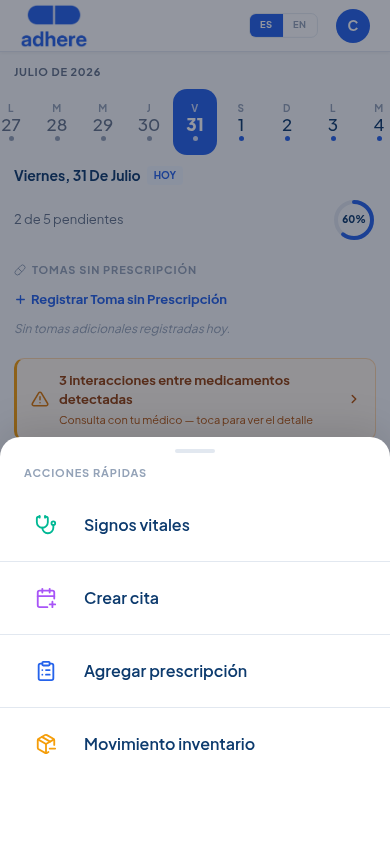
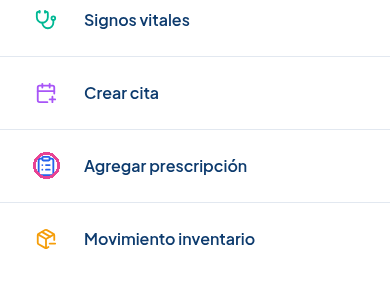
Desde la pantalla "Hoy" o "Medicamentos", toca el botón "+" flotante y selecciona "Agregar prescripción". Aquí es donde eliges tu camino.
From the "Today" or "Medications" screen, tap the floating "+" button and select "Add prescription". This is where you choose your path.
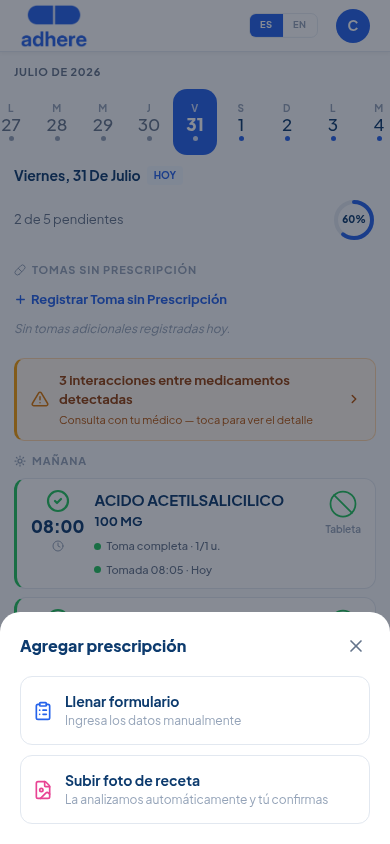
adhere te ofrece dos opciones. Sigue leyendo la sección que te interese — puedes volver a esta página cuando quieras usar la otra.
adhere offers two options. Keep reading the section that applies to you — you can come back to this page whenever you want to use the other one.
Escribe el nombre en el buscador. adhere busca en tiempo real en el catálogo compartido de medicamentos, que combina el vademécum oficial INVIMA con los medicamentos que otros usuarios ya han agregado — los resultados aparecen mientras escribes.
Type the name into the search bar. adhere searches in real time across the shared medication catalog, which combines the official INVIMA drug registry with medications other users have already added — results appear as you type.
Si el medicamento no aparece en ningún resultado, verás la opción "Agregar al catálogo" debajo del buscador — puedes crear la entrada tú mismo aunque no tenga verificación INVIMA automática (se mostrará con la etiqueta "Registro manual").
If the medication doesn't appear in any result, you'll see the "Add to catalog" option below the search bar — you can create the entry yourself even without automatic INVIMA verification (it will show the "Manual entry" label).
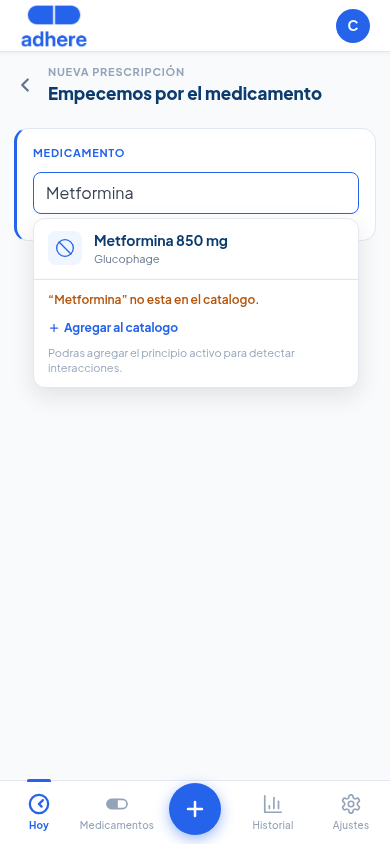
Elige cómo se repite el tratamiento: Todos los días (sin excepción), Días específicos (tú eliges cuáles) o Cada X días (por ejemplo, cada 2 días = día por medio). Las opciones "Cada X semanas" y "Cada X meses" están marcadas Pronto — llegan en una futura actualización.
Choose how the treatment repeats: Every day (no exceptions), Specific days (you choose which ones), or Every X days (for example, every 2 days = every other day). The "Every X weeks" and "Every X months" options are marked Coming soon — they'll arrive in a future update.
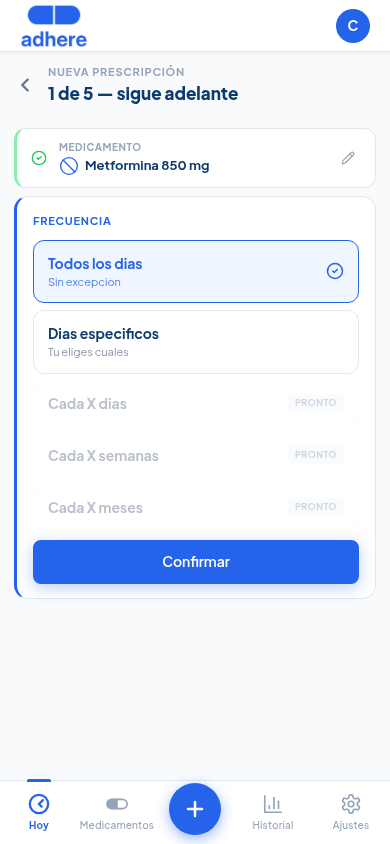
Elige cuántas veces al día (1 a 4 veces, o cada X horas) y la unidad de la dosis — comprimidos, cápsulas, ml, mg, gotas, puffs, aplicación, sobres o unidades — para que el registro coincida con la presentación real del medicamento, ya sea pastilla, jarabe, inhalador o gotas. Luego ajusta la hora y la cantidad por toma con los botones − / +.
Choose how many times a day (1 to 4 times, or every X hours) and the dose's unit — tablets, capsules, ml, mg, drops, puffs, application, sachets, or units — so the entry matches the medication's real form, whether it's a pill, syrup, inhaler, or drops. Then adjust the time and the quantity per dose with the − / + buttons.
Usa "Agregar toma" para sumar más horarios (ej. desayuno, almuerzo y cena) en la misma prescripción.
Use "Add dose time" to add more time slots (e.g. breakfast, lunch, and dinner) within the same prescription.
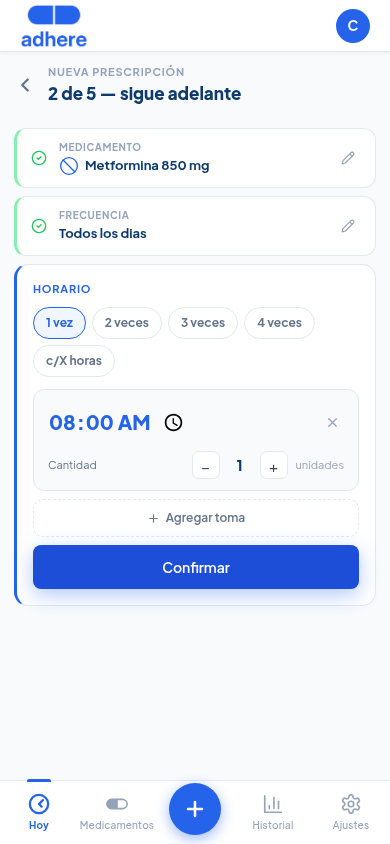
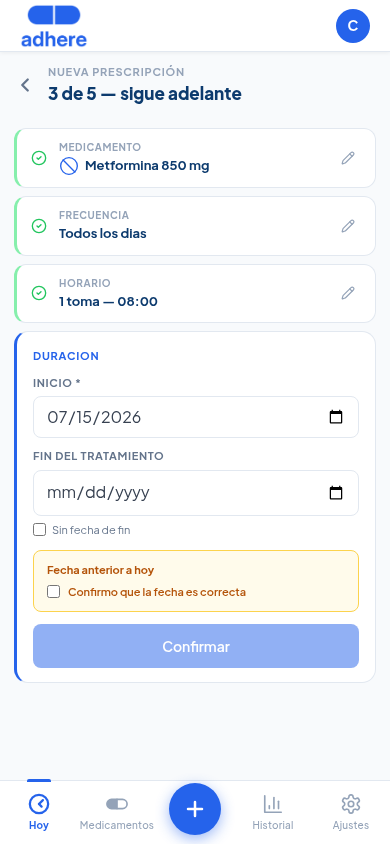
Define la fecha de inicio y elige cómo calcular la duración: "Por días" (usa los chips rápidos de 3/5/7/10/14 días o escribe un número — adhere calcula la fecha de fin automáticamente) o "Por unidades totales" (indica cuántas unidades tienes en total y adhere calcula cuántos días te durarán según el horario del paso anterior). Marca "Sin fecha de fin" para tratamientos crónicos que no tienen una fecha de término conocida.
Set the start date and choose how to calculate the duration: "By days" (use the quick 3/5/7/10/14-day chips or type a number — adhere calculates the end date automatically) or "By total units" (enter how many units you have in total and adhere calculates how many days they'll last based on the schedule from the previous step). Check "No end date" for chronic treatments that don't have a known end date.
Este último paso es completamente opcional — puedes tocar "Omitir" y guardar sin llenarlo. Si quieres, agrega el médico prescriptor y selecciona chips de instrucciones (Con comida, En ayunas, Sin alcohol, No partir, Con agua, No conducir, Sublingual, Diluir, Otro).
This last step is entirely optional — you can tap "Skip" and save without filling it in. If you want, add the prescribing doctor and select instruction chips (With food, On an empty stomach, No alcohol, Do not split, With water, Do not drive, Sublingual, Dilute, Other).
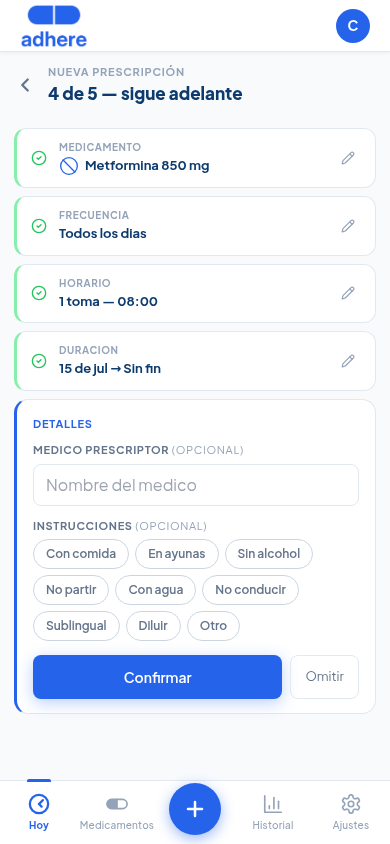
Al guardar, adhere construye automáticamente tu pastillero para hoy y los próximos días. Las tomas pendientes aparecen en la pantalla "Hoy" organizadas por horario. Las notificaciones push llegarán a la hora definida (si las activaste en Ajustes).
Once saved, adhere automatically builds your pill schedule for today and the coming days. Pending doses appear on the "Today" screen organized by time. Push notifications will arrive at the scheduled time (if you enabled them in Settings).
Usa "Cámara" para tomar la foto en el momento, o "Galería" si ya la tienes guardada. Procura que la receta se vea completa, derecha y con buena luz — entre mejor se lea, mejor funciona el reconocimiento automático.
Use "Camera" to take the photo on the spot, or "Gallery" if you already have it saved. Try to keep the prescription fully in frame, straight, and well lit — the clearer it reads, the better the automatic recognition works.
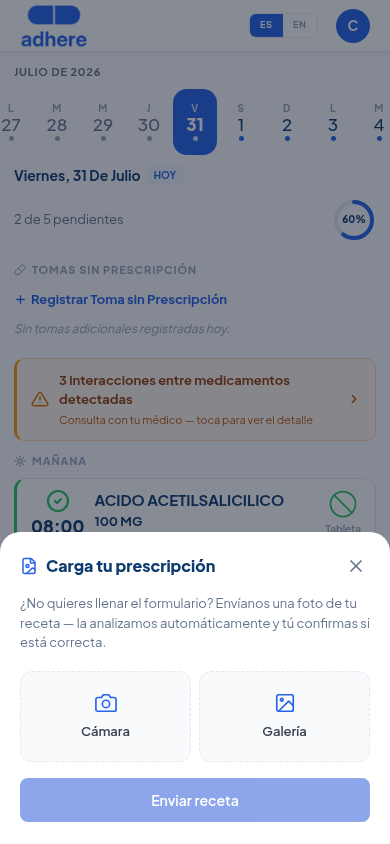
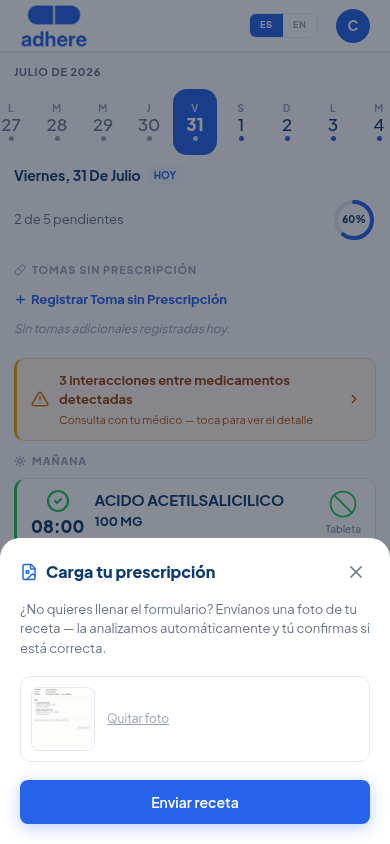
Toca "Enviar receta". adhere te lleva directo a la pantalla de revisión, donde el análisis automático corre solo — normalmente toma unos segundos. La página se actualiza sola, no necesitas recargarla.
Tap "Send prescription". adhere takes you straight to the review screen, where automatic analysis runs on its own — it usually takes a few seconds. The page updates itself, no need to reload it.
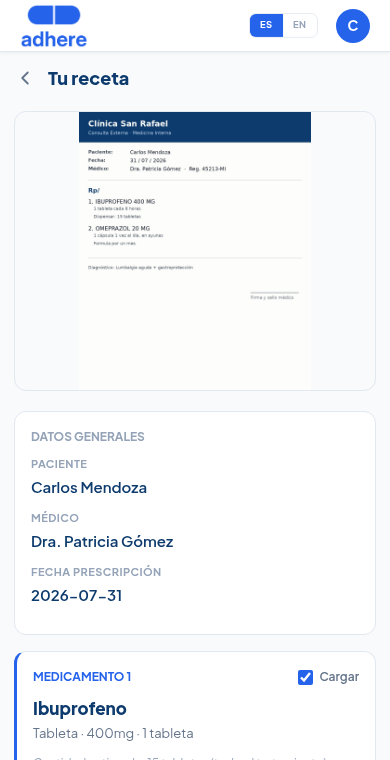
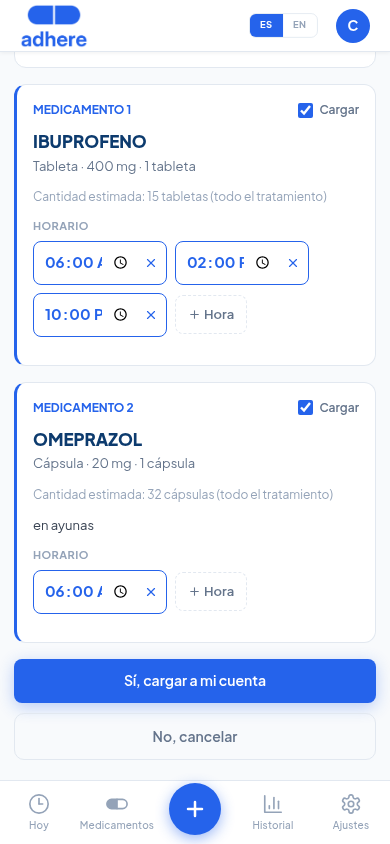
Verás la foto de tu receta arriba, y debajo los datos que adhere identificó: paciente, médico, fecha, y una tarjeta por cada medicamento con presentación, concentración, dosis y una cantidad estimada para todo el tratamiento. Si el medicamento coincide con el registro oficial INVIMA, verás el sello "Verificado INVIMA".
You'll see your prescription photo at the top, and below it the data adhere identified: patient, doctor, date, and one card per medication with form, concentration, dose, and an estimated quantity for the whole treatment. If the medication matches the official INVIMA registry, you'll see the "INVIMA Verified" badge.
adhere propone un horario sugerido para cada medicamento según cómo lo indicó tu médico — puedes tocar cualquier hora para cambiarla, o usar "+ Hora" para agregar una toma adicional. Cuando todo se vea bien, toca "Sí, cargar a mi cuenta".
adhere proposes a suggested schedule for each medication based on how your doctor indicated it — you can tap any time to change it, or use "+ Time" to add an extra dose. When everything looks right, tap "Yes, add to my account".
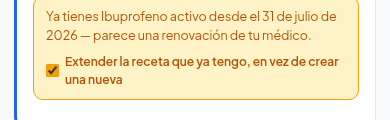
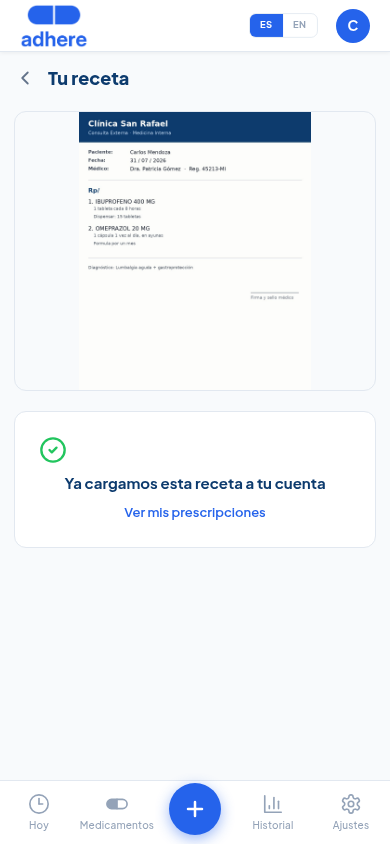
Verás la confirmación "Ya cargamos esta receta a tu cuenta". Cada medicamento que marcaste con "Cargar" ahora es una prescripción real y aparece en tu pantalla "Hoy", con recordatorios push a la hora que confirmaste.
You'll see the confirmation "We've added this prescription to your account". Every medication you marked with "Load" is now a real prescription and appears on your "Today" screen, with push reminders at the time you confirmed.